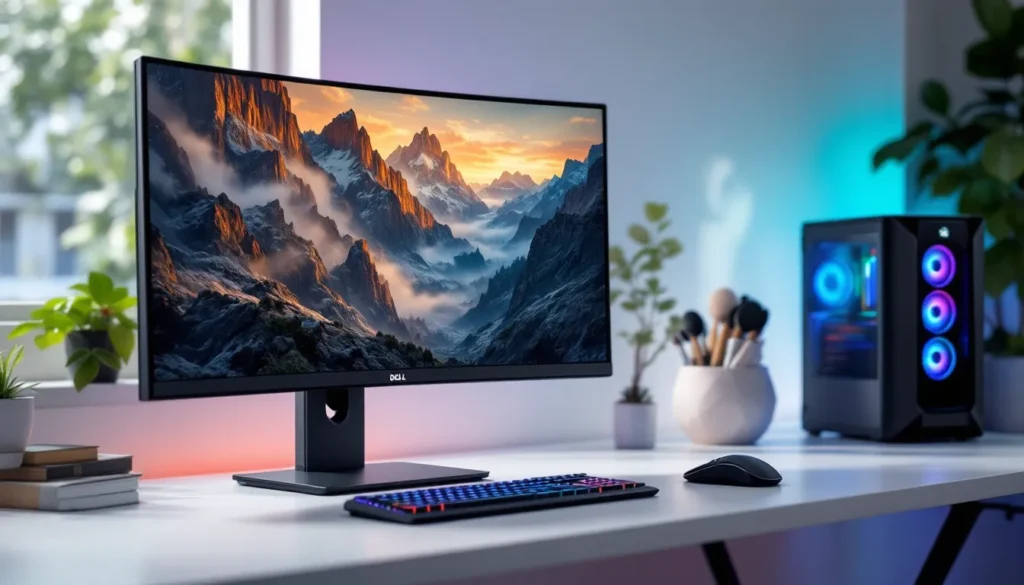
Looking for that perfect blend of screen real estate and immersive curvature? Dell’s 32-inch curved gaming monitors have carved out a reputation for delivering solid performance without the outrageous price tags some competitors demand. Whether you’re lining up headshots in competitive shooters or exploring vast open worlds, the right display can transform your entire gaming experience.
The 32-inch curved format hits a sweet spot that smaller displays can’t match, enough screen to lose yourself in the action, curved just enough to wrap your peripheral vision. Dell’s offerings in this category range from budget-friendly workhorses to premium panels that compete with the best in the business. This guide breaks down everything you need to know: which models deserve your attention in 2026, what specs actually matter for your gaming style, and how Dell stacks up against Samsung and ASUS in the curved monitor arena.
Key Takeaways
- Dell 32 curved gaming monitors deliver the ideal balance of screen size and immersion, with curvature reducing eye strain and naturally wrapping your peripheral vision during gameplay.
- Resolution choices matter significantly on 32-inch displays: 1440p offers the sweet spot for competitive gaming, while 4K excels for immersive single-player titles if your GPU supports it.
- The S3222DGM ($280-350) is Dell’s budget-friendly champion with 1440p/165Hz VA panel performance, while the Alienware AW3225QF ($1,100-1,300) provides premium QD-OLED technology for enthusiasts.
- Racing and flight simulators benefit most from a Dell 32 curved gaming monitor, where the wraparound effect mimics cockpit geometry and measurably improves spatial awareness.
- Optimal viewing distance of 24-36 inches and center-aligned positioning are critical for maximizing the immersive benefits of the curve; off-center placement defeats the technology’s purpose.
- Competitive esports players should prioritize 1440p/165Hz+ with sub-1ms response times over maximum resolution, though the curve won’t hurt competitive play compared to flat panels.
Why Choose a 32-Inch Curved Gaming Monitor?
The Sweet Spot for Screen Size and Field of View
The 32-inch format delivers significantly more screen space than the standard 27-inch displays most gamers are used to, without requiring a desk the size of a conference table. At typical viewing distances (24-36 inches), a 32-inch monitor fills your field of view naturally without forcing constant head movement to track UI elements in the corners.
This size shines for gaming because it matches the native aspect ratio most games are optimized for (16:9) while giving you enough pixels to appreciate high-resolution textures. You’re not squinting at distant enemies in Battle Royale games, and you don’t need to lean forward to read quest text in RPGs. The extra vertical space compared to ultrawide formats also means you’re not sacrificing HUD visibility or competitive advantage in fast-paced titles.
How Curved Displays Enhance Gaming Immersion
The 1800R or 1500R curvature on most Dell 32 gaming monitors (the number represents the radius in millimeters) wraps the edges of the screen slightly toward you. This isn’t just a gimmick, it creates a more uniform viewing distance from your eyes to every part of the display, reducing the perceived distortion you’d get on a flat panel of the same size.
For single-player experiences like open-world games or racing sims, the curve genuinely pulls you into the environment. Your peripheral vision catches more of the screen naturally, making landscapes feel wider and cockpit views more realistic. In competitive gaming, the benefits are subtler but still present: it’s easier to spot movement at screen edges without shifting focus as dramatically. The curved format won’t turn you into a pro overnight, but it does reduce eye strain during marathon sessions and makes the overall experience feel more cohesive than staring at a flat rectangle.
Top Dell 32 Curved Gaming Monitors in 2026
Dell S3222DGM: Best Budget Option
The S3222DGM remains Dell’s go-to recommendation for gamers on a tighter budget. At 2560×1440 (1440p) resolution with a VA panel, it delivers sharp visuals without demanding cutting-edge GPU horsepower. The 165Hz refresh rate and 2ms response time (MPRT) handle fast-paced games competently, though you’ll notice some ghosting in extreme motion compared to premium models.
Key specs:
- Resolution: 2560×1440 (QHD)
- Refresh rate: 165Hz
- Panel: VA with 3000:1 contrast ratio
- Adaptive sync: AMD FreeSync Premium
- Price range: $280-$350
The standout feature here is the contrast ratio. VA panels produce deeper blacks than IPS, making this monitor excellent for atmospheric games with dark environments, horror titles, space sims, and noir-styled games benefit noticeably. Color accuracy isn’t reference-grade, but it’s more than adequate for gaming. If you’re upgrading from a 60Hz 1080p display, the S3222DGM feels like a massive leap forward without demolishing your wallet.
Dell G3223Q: Premium 4K Performance
The G3223Q targets gamers with mid-to-high-end rigs who want 4K clarity. This 32-inch IPS panel runs at 3840×2160 with a 144Hz refresh rate, a combination that demands serious GPU muscle but delivers stunning image quality when you can push the frames.
Key specs:
- Resolution: 3840×2160 (4K UHD)
- Refresh rate: 144Hz
- Panel: Fast IPS with 1ms GtG response time
- Adaptive sync: AMD FreeSync Premium Pro, G-Sync compatible
- HDR: DisplayHDR 600 certification
- Price range: $650-$800
Note that the G3223Q is technically a flat panel, not curved, Dell’s dell 32 gaming monitor lineup includes both formats. If you’re dead-set on curvature, this won’t fit the bill. But it deserves mention because it’s Dell’s flagship 32-inch gaming display and frequently gets cross-shopped with curved alternatives. The Fast IPS technology minimizes the typical IPS response time penalty, and the DisplayHDR 600 certification provides noticeable brightness peaks in supported games (though it’s not true local-dimming HDR).
Dell Alienware AW3225QF: Ultimate High-End Choice
For enthusiasts who want the absolute best, the Alienware AW3225QF represents Dell’s premium tier. This 32-inch QD-OLED curved panel combines 4K resolution with OLED’s signature perfect blacks and near-instantaneous response times. It’s a beast.
Key specs:
- Resolution: 3840×2160 (4K UHD)
- Refresh rate: 240Hz
- Panel: QD-OLED with quantum dot color technology
- Response time: 0.03ms GtG
- Adaptive sync: G-Sync Ultimate certified
- HDR: DisplayHDR True Black 400
- Price range: $1,100-$1,300
The QD-OLED technology delivers colors that pop off the screen with intensity flat panels can’t match. Contrast is effectively infinite (OLED pixels turn completely off for true black), and the 240Hz refresh rate makes even fast esports titles butter-smooth. The curve (1700R) feels more pronounced than budget models, wrapping the display more aggressively around your field of view.
The tradeoffs? OLED burn-in remains a consideration if you leave static HUD elements on-screen for hundreds of hours. Dell includes pixel-shift and dimming features to mitigate this, but it’s something to monitor. And you’ll need a top-tier GPU (RTX 4080 or better, Radeon 7900 XT minimum) to actually drive 4K at high refresh rates.
Key Specifications to Consider
Resolution: 1080p vs 1440p vs 4K
At 32 inches, resolution matters more than on smaller displays. Pixel density drops as screen size increases, so a 1080p image that looks fine on 24 inches starts showing jagged edges and less-defined textures at 32 inches. Here’s how the math shakes out:
- 1920×1080 (1080p): 68.84 PPI. Noticeably pixelated at typical viewing distances. Only consider this if budget absolutely demands it.
- 2560×1440 (1440p): 91.79 PPI. The sweet spot for most gamers, sharp enough to look crisp, easy enough to drive at high refresh rates.
- 3840×2160 (4K): 137.68 PPI. Maximum clarity, but demands GPU headroom. Best for single-player experiences where you can dial settings to maintain 60+ FPS.
For competitive gaming where frame rate trumps everything, 1440p makes the most sense. For immersive single-player titles where you want to appreciate every detail, 4K wins if your hardware supports it.
Refresh Rate and Response Time for Competitive Gaming
Refresh rate determines how many frames per second the monitor can display. Higher numbers mean smoother motion and reduced input lag, critical for competitive shooters, MOBAs, and fighting games.
- 60Hz: Baseline standard. Feels sluggish once you’ve experienced higher refresh rates.
- 144Hz: The minimum target for competitive gaming. Smooth enough for most players.
- 165Hz-240Hz: Diminishing returns for casual players, but competitive gamers notice the difference in twitch scenarios.
Response time measures how quickly pixels transition between colors, usually reported as GtG (gray-to-gray). Lower numbers reduce ghosting and motion blur:
- 5ms or higher: Noticeable blur in fast motion. Acceptable for slow-paced games only.
- 2-4ms: Adequate for most gaming. Some ghosting in extreme scenarios.
- 1ms or lower: Minimal motion blur. Competitive-ready.
Many monitors with advanced display technology achieve sub-1ms response times through overdrive features, though aggressive overdrive can introduce inverse ghosting (pixel overshoot).
Panel Technology: VA vs IPS
Most Dell curved gaming monitors use VA (Vertical Alignment) panels, though some premium models feature IPS (In-Plane Switching).
VA panels:
- Pros: Superior contrast ratios (typically 3000:1 vs 1000:1 for IPS), deeper blacks, better for dark scenes
- Cons: Slower response times on average, narrower viewing angles, potential black smearing in fast dark-to-light transitions
IPS panels:
- Pros: Faster response times, better color accuracy out of the box, wider viewing angles
- Cons: IPS glow and backlight bleed in dark scenes, lower contrast ratios
For curved gaming monitors specifically, VA makes sense because the curve mitigates the viewing angle weakness. You’re typically sitting dead-center anyway, so IPS’s wider angles matter less. The superior contrast enhances the immersion factor curved displays are designed to deliver.
Adaptive Sync: FreeSync vs G-Sync Compatibility
Adaptive sync technology eliminates screen tearing by synchronizing the monitor’s refresh rate with your GPU’s frame output. Dell’s curved gaming monitors typically support AMD FreeSync natively, with most also working with NVIDIA G-Sync Compatible mode.
The practical difference in 2026 is minimal. Both technologies work across GPU brands now (NVIDIA supports FreeSync monitors, AMD supports G-Sync displays). Check these ranges:
- FreeSync Premium: Guarantees at least 120Hz refresh rate and low framerate compensation (LFC)
- FreeSync Premium Pro: Adds HDR support with tone mapping
- G-Sync Compatible: NVIDIA-tested FreeSync monitors that meet quality standards
- G-Sync Ultimate: Premium tier with hardware module, typically found in high-end displays like the AW3225QF
For most users, any adaptive sync support is sufficient. Just verify the adaptive sync range covers your typical frame rates (ideally from 40-48Hz up to the max refresh rate).
Setting Up Your Dell 32 Curved Gaming Monitor
Optimal Viewing Distance and Ergonomics
For a 32-inch curved gaming monitor, the ideal viewing distance ranges from 24 to 36 inches from your eyes to the screen. Closer than 24 inches and you’ll find yourself moving your head too much: farther than 36 inches and you lose the immersive benefit of the curve.
Position the monitor so the top edge sits at or slightly below eye level when you’re seated normally. Your eye line should hit roughly the upper third of the screen. This reduces neck strain during extended sessions. Most Dell monitors include height-adjustable stands, but if yours doesn’t, a monitor arm or sturdy riser works fine.
The curve orientation matters: make sure the center of the screen aligns with your seating position. Off-center viewing defeats the purpose of the curvature and introduces distortion. If you’re setting up a multi-monitor configuration, keep in mind that mixing curved and flat displays can look awkward, the mismatched geometry creates visual discontinuity at the bezels.
Calibration Tips for Best Picture Quality
Out of the box, Dell monitors tend toward cooler color temperatures (bluer whites) and oversaturated colors. A few tweaks improve image quality significantly:
- Switch picture mode: Start with the “Standard” or “Custom” preset rather than “Vivid” or “Game.” These modes provide more neutral starting points.
- Adjust color temperature: Set it to “Warm” or “Custom” with RGB values around 95-95-100 (red-green-blue) for more accurate whites.
- Dial back brightness: Most monitors ship at 100% brightness, which causes eye strain. Drop to 60-80% for indoor lighting conditions.
- Enable Dark Stabilizer carefully: This feature lifts shadow detail, which helps in competitive games but crushes black levels. Use sparingly or disable for single-player experiences.
- Test with reference images: Load up the Lagom LCD test images or similar calibration patterns to check for color banding, uniformity issues, and gradient handling.
For serious color work, a hardware calibrator like the Datacolor SpyderX makes sense. For gaming-only use, visual calibration gets you 90% of the way there.
Connecting to Your PC or Console
Most Dell 32 curved gaming monitors include multiple input options:
- DisplayPort 1.4: Best option for PC gaming. Supports 1440p at 165Hz+ and 4K at 144Hz with no compromises. Always use this for high-refresh gaming if available.
- HDMI 2.0: Adequate for 1440p at 144Hz and 4K at 60Hz. Most monitors include at least two HDMI ports.
- HDMI 2.1: Found on premium models. Supports 4K at 120Hz, essential for PS5 and Xbox Series X if you want full next-gen performance.
For PC gaming, grab a quality DisplayPort cable (the included ones are usually fine, but cheap aftermarket cables can cause signal dropouts). Console gamers should verify their HDMI cable is rated for the bandwidth they need, many older cables cap at HDMI 2.0 speeds even if both the monitor and console support 2.1.
Don’t forget to enable high refresh rate in your OS and GPU control panel. Windows defaults to 60Hz even on high-refresh displays: you’ll need to manually set it in Display Settings. For adaptive sync, enable it both in the monitor’s OSD menu and in your GPU software (NVIDIA Control Panel or AMD Radeon Software).
Performance Across Different Gaming Genres
First-Person Shooters and Competitive Esports
For competitive FPS titles like Counter-Strike 2, Valorant, or Call of Duty, the 32-inch curved format walks a fine line. The extra screen real estate helps with peripheral awareness, you’ll spot flanking enemies in your peripheral vision more naturally. But, many esports pros still prefer 24-27 inch displays because they minimize eye travel distance to check minimap or corner UI elements.
If you’re serious about competitive play, prioritize refresh rate over resolution. A 1440p/165Hz dell 32 gaming monitor will serve you better than a 4K/60Hz panel. Response time becomes crucial, aim for 1ms GtG or better. The S3222DGM’s 2ms response time is acceptable but not ideal for top-tier competitive play. The Alienware models with sub-millisecond response times eliminate any panel-induced lag.
The curve itself is neutral-to-positive for FPS gaming. It doesn’t introduce the stretched-edge distortion some players dislike about ultrawide monitors. Just be aware that pros overwhelmingly use flat panels, so if you’re mimicking competitive setups, curved might not be your play.
Open-World and RPG Gaming
This is where 32-inch curved monitors truly shine. Games like Elden Ring, Cyberpunk 2077, Baldur’s Gate 3, and Red Dead Redemption 2 benefit massively from the immersive wrap-around effect and the extra screen space to appreciate environmental detail.
The curve draws you into expansive vistas and makes dense UI layouts in RPGs more manageable. Inventory screens, skill trees, and quest logs spread across 32 inches without feeling cramped. The enhanced contrast of VA panels (common in Dell curved monitors) makes dark dungeons and nighttime exploration more atmospheric, shadows actually look black rather than murky gray.
For these titles, resolution matters more than refresh rate. A 4K panel at 60-120 FPS delivers a more impressive experience than 1440p at 165Hz. If you’re choosing between the S3222DGM and G3223Q primarily for single-player RPGs, the extra resolution of the G3223Q is worth the investment if your GPU can handle it (RTX 4070 or Radeon 7800 XT minimum for high settings).
Racing and Flight Simulators
Racing sims (Assetto Corsa Competizione, iRacing, F1 2025) and flight sims (Microsoft Flight Simulator, DCS World) are the absolute best use case for curved gaming monitors. The wraparound effect mimics actual cockpit geometry, and studies on immersive gaming displays show measurable improvements in spatial awareness for sim racing with curved panels.
The curve helps you judge apexes and peripheral traffic more naturally in racing games. In flight sims, the extended field of view makes instrument scanning and situational awareness more intuitive. These genres don’t demand ultra-high refresh rates (60-120Hz is plenty), so even mid-tier Dell curved monitors deliver excellent experiences.
One tip: make sure your sim supports proper FOV adjustment. Incorrect FOV on a curved monitor creates weird distance perception that can hurt lap times or make landings harder. Most serious sims include FOV calculators, input your screen size, curvature, and viewing distance for accurate setup.
Dell vs Competitors: How Does It Stack Up?
Dell vs Samsung Odyssey Curved Monitors
Samsung’s Odyssey lineup is Dell’s most direct competitor in the curved gaming space. The Odyssey G7 (32-inch) competes with Dell’s mid-range offerings, while the Odyssey Neo G8 targets the same premium tier as Alienware models.
Where Dell wins:
- Build quality and reliability. Dell’s monitors typically have fewer QC issues and better warranty support.
- Color accuracy out of the box. Samsung tends toward oversaturated, punchy colors that look impressive in stores but aren’t as accurate.
- Price-to-performance in the budget segment. The S3222DGM undercuts comparable Samsung models by $50-100.
Where Samsung wins:
- More aggressive curvature (1000R on many models vs Dell’s 1500R-1800R). This creates more immersion but can distort straight lines.
- Mini-LED backlighting in premium models offers better HDR performance than Dell’s non-OLED options.
- Slightly higher peak brightness, beneficial in bright room environments.
The choice often comes down to preference: Samsung for eye-catching visuals and extreme curve, Dell for balanced performance and reliability.
Dell vs ASUS ROG Curved Gaming Displays
ASUS’s Republic of Gamers curved monitors lean heavily into gamer aesthetics with RGB lighting and aggressive designs. Performance-wise, they’re competitive with Dell’s lineup.
Where Dell wins:
- Cleaner aesthetic. Dell and Alienware monitors avoid the over-the-top “gamer gear” look that ASUS embraces.
- Better value in budget tiers. ASUS charges a premium for the ROG branding.
- Simpler OSD (on-screen display) menus. ASUS menus can be overwhelming with excessive options.
Where ASUS wins:
- Broader selection. ASUS offers more size and spec combinations in curved formats.
- Better included accessories (ROG monitors often ship with mouse bungees, cable management, etc.).
- Enhanced gaming features like crosshair overlays, FPS counters, and more granular control over response time overdrive.
Performance analysis from hardware testing sites consistently shows Dell and ASUS trading blows across price tiers. ASUS edges ahead in raw gaming features, while Dell takes the lead in panel quality and consistency. If you want the most gaming-specific bells and whistles, ASUS: if you want a reliable workhorse that happens to game exceptionally well, Dell.
Common Issues and Troubleshooting
Screen Flickering and How to Fix It
Screen flickering on Dell curved gaming monitors typically stems from adaptive sync issues or incompatible refresh rates. If you notice periodic flashing or brief blackouts:
- Check your adaptive sync range: If your frame rate dips below the monitor’s minimum FreeSync/G-Sync range, flickering can occur. Enable LFC (Low Framerate Compensation) in your GPU control panel if available.
- Update GPU drivers: Outdated drivers frequently cause adaptive sync bugs. NVIDIA’s Game Ready drivers and AMD’s Adrenalin software push regular fixes.
- Test with adaptive sync disabled: Toggle FreeSync/G-Sync off in both the monitor OSD and GPU software. If flickering stops, the issue is adaptive sync related.
- Try a different cable: Cheap or damaged DisplayPort/HDMI cables cause signal integrity problems. Swap in a certified cable (VESA-certified for DisplayPort, Premium High Speed for HDMI).
- Adjust overdrive settings: Aggressive overdrive (“Fast” or “Extreme” modes) can cause flickering. Dial back to “Normal” or “Medium.”
If none of these work, test the monitor on a different system to rule out GPU issues. Dell’s warranty covers panel defects, so persistent flickering might warrant an RMA.
Color Banding and Ghosting Solutions
Color banding (visible steps in smooth gradients) and ghosting (trailing behind moving objects) are common complaints with VA panel monitors.
For color banding:
- Enable dithering in your GPU control panel (NVIDIA: Desktop Color Settings > Output dynamic range: AMD: Display settings).
- Reduce in-game color bit depth if the option exists. Some games’ 8-bit vs 10-bit implementations introduce banding.
- Check that you’re running in full RGB range (0-255) rather than limited (16-235). This setting lives in your GPU control panel under display configuration.
For ghosting:
- Adjust response time/overdrive settings in the monitor OSD. Higher settings reduce ghosting but can cause inverse ghosting (overshoot). Find the balance.
- VA panels inherently ghost more in dark transitions (“black smearing”). Dark Stabilizer features can minimize visible smearing by lifting black levels, but this reduces contrast.
- Lowering refresh rate slightly (165Hz to 144Hz) sometimes improves response time consistency on budget panels.
Some degree of both issues is unavoidable on VA panels. If color banding is severe across all content, you may have a defective panel, Dell’s dead pixel policy and warranty cover functional display defects beyond cosmetic tolerances.
Is a Dell 32 Curved Gaming Monitor Right for You?
The dell 32 curved gaming monitor format fits a specific gaming profile. You’ll love it if you primarily play immersive single-player games, racing/flight sims, or open-world titles where atmosphere matters. The combination of size and curve enhances presence in ways smaller or flat panels can’t match. Gamers who value visual immersion over absolute competitive edge get the most from this format.
It’s also ideal if you have desk space to accommodate proper viewing distance (24-36 inches) and prefer a single premium display over multi-monitor setups. The 32-inch size reduces the need for secondary screens for most gaming tasks, you have enough real estate for Discord, guides, or streaming software alongside your game without feeling cramped.
You might want to reconsider if you’re laser-focused on competitive esports with titles like Valorant, CS2, or League of Legends as your primary games. Many competitive players find 24-27 inch flat panels with ultra-high refresh rates (240Hz+) more practical for minimizing eye movement and maximizing responsiveness. The curve doesn’t hurt competitive play, but it doesn’t provide meaningful advantages either.
Also consider your GPU capability. A 32-inch 1440p or 4K monitor at high refresh rates demands significant graphics horsepower. If you’re running a mid-range GPU (RTX 4060, Radeon 7700 XT), you’ll need to compromise between resolution and refresh rate in demanding games. A 27-inch 1440p might make more sense for consistent high-FPS gaming on moderate hardware.
Budget plays a role too. Dell’s curved gaming monitor range spans from $280 (S3222DGM) to over $1,300 (Alienware OLED models). The entry-level options deliver solid value, but if you’re maxing out budget at the low end, consider whether a flat panel with better specs at the same price serves your needs better. The curve is a feature worth paying for when the rest of the specs align with your priorities, not a standalone reason to buy.
Conclusion
Dell’s 32-inch curved gaming monitor lineup offers something for nearly every gaming setup and budget, from the wallet-friendly S3222DGM to the jaw-dropping Alienware QD-OLED. The format’s strength lies in its balance: big enough to feel genuinely immersive, curved enough to enhance presence without distorting gameplay, and mature enough as a technology that reliability issues have been largely ironed out.
Your best bet depends on how and what you play. Single-player adventurers and sim racers should absolutely prioritize this format, the immersion factor alone justifies it. Competitive gamers can make it work but should emphasize refresh rate and response time over resolution and curve depth. Content variety matters too: if you split time between competitive shooters and expansive RPGs, a versatile mid-range option like the S3222DGM or similar delivers flexibility without forcing compromises.
The spec sheet only tells part of the story. Viewing distance, desk setup, GPU capability, and even room lighting affect whether a 32-inch curved panel becomes your favorite gaming upgrade or an expensive mistake. If possible, see one in person before buying, the curve effect is subjective, and what feels immersive to some feels excessive to others. But get it right, and you’ll wonder how you ever gamed on a flat screen.