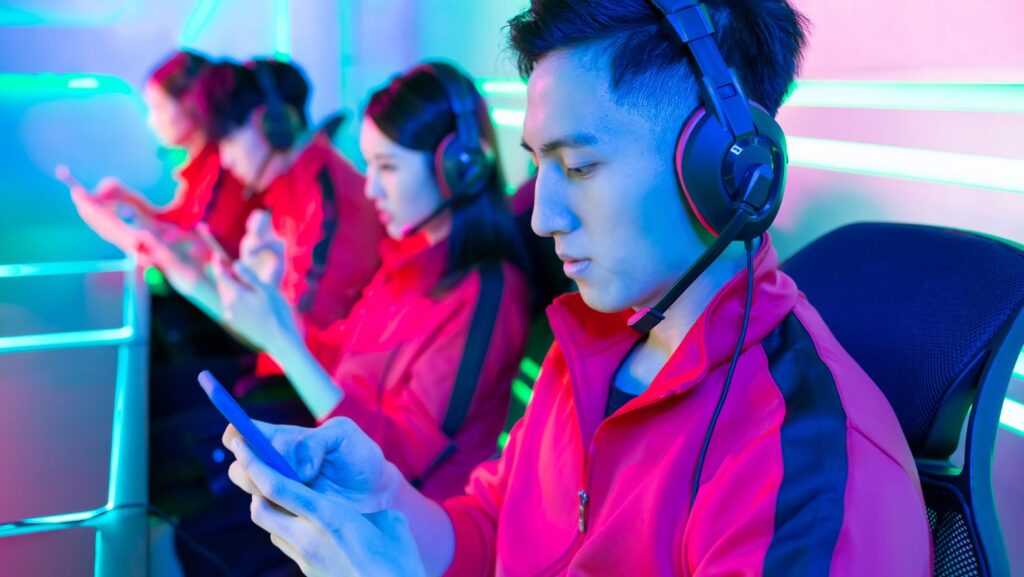

Cloud gaming has fundamentally changed how players approach competitive titles, and Apex Legends sits right at the intersection of fast-paced battle royale action and the demands of streaming technology. The promise is simple: play a AAA title on hardware that shouldn’t be able to run it, from anywhere with a decent internet connection. But does that promise hold up when you’re dropping into Kings Canyon with 59 other players gunning for the win?
For Apex players who travel frequently, own older hardware, or just want the flexibility to switch between devices without sacrificing progress, cloud gaming platforms offer a compelling solution. The technology has matured significantly since the early stumbles of services like Stadia. In 2026, multiple platforms offer Apex Legends with performance that can genuinely compete with local installations, provided you understand the limitations and optimize your setup correctly.
This guide breaks down everything players need to know about running Apex Legends through cloud gaming platforms. From choosing the right service to optimizing for ranked play, here’s how to make cloud gaming work for one of the most mechanically demanding battle royales on the market.
Key Takeaways
- Apex Legends cloud gaming is viable in 2026 with services like GeForce NOW and Xbox Cloud Gaming delivering competitive performance for casual and intermediate players.
- Cloud gaming for Apex Legends eliminates 70GB downloads, provides instant access to patches, and enables seamless play across multiple devices through cross-progression.
- Competitive cloud gaming success requires wired ethernet (50-75 Mbps minimum), sub-30ms latency to servers, and optimized controller/graphics settings to minimize input lag.
- Diamond-rank and higher competitive players may still experience measurable disadvantages with cloud gaming’s 40-50ms inherent latency compared to sub-20ms local setups.
- Cloud gaming costs between $9.99–$21.99 monthly and consumes 6-20GB per hour, making it cost-effective for casual players but less suitable for those with strict data caps.
What Is Cloud Gaming and How Does It Work with Apex Legends?
Understanding Cloud Gaming Technology
Cloud gaming operates on a straightforward principle: the game runs on remote servers in a data center, and your device receives a video stream of the gameplay while sending your inputs back upstream. Think of it as Netflix, but instead of passively watching video, you’re controlling it in real-time. The server hardware handles all the processing, rendering frames, calculating physics, managing AI, while your laptop, phone, or tablet simply displays the output.
The critical challenge is latency. Every input you make travels to the server, gets processed, and the resulting frame travels back. In a turn-based game, 50-100ms of latency might be unnoticeable. In Apex Legends, where TTK (time-to-kill) can be under a second with certain weapons and missing a spray can cost you the fight, every millisecond matters. Modern cloud gaming platforms combat this through edge computing, placing servers geographically closer to players, and predictive algorithms that anticipate inputs.
Why Apex Legends Is Perfect for Cloud Gaming
Apex Legends actually holds up better in cloud environments than many competitive shooters, and the reasons are specific to Respawn’s design choices. The game’s relatively forgiving TTK compared to titles like Call of Duty or Counter-Strike means slight delays won’t immediately get you killed. The movement system rewards game sense and positioning over pixel-perfect flick shots, though wall-bounces and superglides still demand precision.
More importantly, Apex Legends already runs on EA’s servers for all gameplay. You’re not hosting peer-to-peer matches where your local hardware gives you an edge. Whether you’re playing on a $3,000 gaming rig or streaming through GeForce NOW, the actual game simulation happens in the same place. The only variable is how quickly your inputs reach that simulation and how cleanly you receive the video feed.
The game’s cross-progression support across platforms also makes cloud gaming particularly attractive. Your Battle Pass progress, unlocked Legends, skins, and ranked status follow your EA account regardless of how you access the game. A player can grind ranked on their home PC during evenings and hop into casual matches via cloud gaming from their MacBook during lunch breaks without losing any progress.
Best Cloud Gaming Platforms for Apex Legends in 2026
GeForce NOW: Performance and Features
GeForce NOW remains the gold standard for cloud gaming performance, and it’s the platform most serious Apex players gravitate toward. NVIDIA’s service offers multiple subscription tiers, with the Priority tier delivering 1080p at 60fps and the Ultimate tier pushing 4K at 120fps with RTX graphics enabled. That top tier runs Apex on virtual rigs equipped with hardware equivalent to RTX 4080 GPUs.
The free tier exists but comes with session time limits (one hour) and queue times during peak hours, making it impractical for ranked grinds. The Priority tier ($10.99/month as of March 2026) eliminates queues and extends sessions to six hours, enough for extended play sessions. Ultimate ($21.99/month) is overkill for most players unless they’re running 1440p or 4K displays and want maximum visual fidelity.
GeForce NOW requires you to own Apex through Steam or the EA app. You’re not renting access to games through NVIDIA, you’re streaming games you already own or have access to via free-to-play offerings. This means your existing Apex account, friends list, and settings carry over seamlessly.
Xbox Cloud Gaming: Console Experience on Any Device
Xbox Cloud Gaming (formerly xCloud) takes a different approach. It’s bundled with Game Pass Ultimate ($16.99/month), which also includes the full Game Pass library and Xbox Live Gold. The service streams the Xbox Series X version of Apex Legends, delivering console-equivalent performance at 1080p/60fps to supported devices.
The trade-off is flexibility. You’re locked into controller input for most games, though Apex Legends supports mouse and keyboard on Xbox and that functionality extends to cloud play. Performance is consistent but doesn’t scale to the high refresh rates that GeForce NOW Ultimate can deliver. For players already invested in the Xbox ecosystem or who want Game Pass’s library alongside cloud gaming, it’s solid value.
One underrated advantage: Xbox Cloud Gaming handles game updates automatically. Players never wait for patches to download because they’re streaming a version the service maintains. When Season 25’s mid-season patch dropped in January 2026, cloud players jumped in immediately while local installations spent 15 minutes downloading.
Amazon Luna: Accessibility and Value
Amazon Luna offers a more budget-friendly entry point at $9.99/month for the Luna+ channel, which includes Apex Legends alongside other titles. Performance sits between GeForce NOW’s Priority and Ultimate tiers, delivering 1080p at 60fps on most titles with occasional upscaling options.
Luna’s strength is accessibility. Setup is remarkably simple, sign in, click play, and you’re dropping from the dropship within seconds. The service works particularly well on Fire TV devices and Amazon’s Luna controller, which connects directly to Amazon’s servers via WiFi rather than routing through your device for marginally reduced latency.
The downside is the smallest server footprint of the three major platforms. Players outside major metropolitan areas in North America and parts of Europe may experience noticeably higher latency compared to GeForce NOW or Xbox Cloud Gaming.
Other Cloud Gaming Options
Boosteroid, a Ukraine-based service expanding globally, also supports Apex Legends and undercuts the competition at around $7.50/month. Performance is serviceable for casual play but doesn’t match NVIDIA’s infrastructure. PlayStation Plus Premium technically offers cloud streaming, but as of March 2026, Apex Legends isn’t in the cloud-enabled library even though being available on PS5.
Shadow PC deserves mention for competitive players willing to pay premium prices. Rather than streaming specific games, Shadow provides a full Windows 10 or 11 PC in the cloud. You install Apex (or any game) exactly as you would locally. Plans start at $29.99/month, but you get complete control over settings, anti-cheat compatibility, and can run third-party tools. It’s overkill for most users but gives the experience closest to local hardware.
System Requirements and Internet Speed Recommendations
Minimum Internet Speed for Smooth Gameplay
Cloud gaming’s dirty secret is that it’s more demanding on your internet connection than actually playing online multiplayer locally. NVIDIA recommends a minimum of 15 Mbps for 720p/60fps streaming, 25 Mbps for 1080p/60fps, and 40+ Mbps for their Ultimate tier’s 4K streams. Those are baseline numbers, real-world performance benefits significantly from headroom.
For competitive Apex play, the 25 Mbps minimum for 1080p should be considered absolute floor. Aim for 50-75 Mbps if possible. Connection stability matters more than peak speed. A rock-solid 30 Mbps fiber connection will outperform a cable connection that averages 100 Mbps but spikes and drops during congestion.
Latency is the make-or-break metric. Cloud gaming adds inherent delay to your total input lag. Players should target sub-30ms ping to the cloud gaming service’s nearest data center, with sub-20ms being ideal for ranked play. Test this specifically to the service you plan to use, having 15ms ping to your nearest Apex server won’t help if you’ve got 60ms to the nearest GeForce NOW node.
Upload speed often gets overlooked. While most bandwidth goes to downloading the video stream, your inputs travel upstream. At least 5 Mbps upload ensures your stick movements, ability triggers, and shots register without stuttering. Players tracking their network performance metrics often discover upload bottlenecks they hadn’t considered.
Device Compatibility Across Platforms
GeForce NOW casts the widest net for device support. The service runs on Windows PCs (Windows 8 or later), Macs (macOS 10.10+), Chromebooks, Android phones and tablets (Android 5.0+), iPhones and iPads via Safari browser, NVIDIA Shield TV devices, and select Samsung and LG smart TVs. The dedicated apps generally outperform browser-based streaming, but Safari on iOS delivers surprisingly solid performance as of the iOS 17 update.
Xbox Cloud Gaming supports Windows PCs, Android devices, iPhones and iPads (via browser), and Xbox consoles for remote play of games you don’t have installed locally. Microsoft added smart TV support in 2024, and the Samsung Gaming Hub integration remains the smoothest console-free cloud gaming experience available.
Amazon Luna runs on Fire TV devices (obviously), Windows PCs, Macs, Chromebooks, iPhones/iPads via web apps, and Android devices. You’ll need relatively recent hardware, devices older than 4-5 years may struggle with video decoding even if they meet the official requirements.
Peripherals matter. Any USB or Bluetooth controller that works with your device will work with cloud gaming. Keyboard and mouse support varies by platform, GeForce NOW handles it perfectly since you’re streaming the PC version, while Xbox Cloud Gaming’s mouse support is game-dependent. Wireless controllers introduce an additional 5-10ms of latency compared to wired, which compounds the inherent cloud gaming delay.
Setting Up Apex Legends on Cloud Gaming Platforms
Step-by-Step Setup Guide for GeForce NOW
Setting up Apex Legends on GeForce NOW takes about five minutes if you already have an EA account. First, create an NVIDIA account and choose your subscription tier. The free tier works for testing but won’t sustain serious play.
Link your game library by signing into either Steam or the EA app through the GeForce NOW interface. Apex Legends is free-to-play, so you don’t need to own anything, just have an EA account. Search for “Apex Legends” in the GeForce NOW library and click play. The service will prompt you to log into EA’s servers using your EA account credentials.
First launch takes longer because the system sets up your virtual machine and loads the game. Subsequent sessions connect faster. Configure your graphics settings during this first session, cloud gaming platforms don’t save local files, but Apex stores settings server-side with your EA account.
One critical step: disable bandwidth throttling in the GeForce NOW app settings. The default “Auto” setting sometimes caps quality unnecessarily. Set it to “Custom” and manually select your tier’s maximum (1080p/60fps for Priority, 1440p/120fps or 4K/60fps for Ultimate). Also toggle on “Adjust for Poor Network Conditions” only if you’re on unstable connections, it reduces visual quality to maintain frame rate consistency.
How to Access Apex Legends via Xbox Cloud Gaming
Xbox Cloud Gaming’s setup is even simpler. Subscribe to Game Pass Ultimate, then navigate to xbox.com/play on a browser or open the Xbox app on your mobile device. Apex Legends appears in the cloud-enabled games library, filter by “Free-to-Play” to find it quickly.
Click to launch, and the system handles everything else. You’ll need to sign into your EA account the first time, linking it to your Xbox profile. After that initial login, you’re straight into the lobby. According to coverage from Windows Central, Microsoft optimized cloud input latency specifically for competitive shooters in their December 2025 infrastructure update, bringing response times noticeably closer to native console play.
Xbox Cloud Gaming shines on mobile. The Xbox app on Android and iOS includes touch controls overlays for supported games, though Apex really demands a controller. Razer’s Kishi or Backbone controllers turn phones into legitimate portable gaming devices.
Linking Your Accounts and Progress Synchronization
Apex Legends uses EA accounts as the single source of truth for progression. Your level, unlocks, Battle Pass progress, and stats live on EA’s servers regardless of platform. The first time you launch Apex through any cloud gaming service, you’ll sign into your EA account, which automatically syncs everything.
Cross-progression works flawlessly between cloud and local play. Grind your Battle Pass to level 95 on GeForce NOW, then finish the last five levels on your home PS5, progress carries over instantly. Ranked status, RP (ranked points), and even your active challenges update in real-time.
One warning for players with multiple platform-specific accounts: Apex Legends supports cross-progression as of Season 19’s update in 2024, but merging accounts is a one-time irreversible process. If you have separate high-level accounts on different platforms, research EA’s account merge tool carefully before proceeding. Cloud gaming doesn’t change how this works, but the convenience of platform switching makes account consolidation more attractive.
Optimizing Performance for Competitive Play
Reducing Input Lag and Latency
Input lag is the final boss of cloud gaming for competitive titles. The total delay from pressing a button to seeing results on screen includes: controller/peripheral latency, device processing, network upload time, server processing, network download time, video decoding, and display lag. That’s a lot of links in the chain.
Start with what you can control directly. Use wired ethernet instead of WiFi whenever possible, a quality Cat6 cable eliminates wireless interference and jitter. If WiFi is unavoidable, sit close to your router, use 5GHz bands instead of 2.4GHz, and eliminate interference from other devices. Gaming routers with QoS (Quality of Service) features can prioritize cloud gaming traffic over other household bandwidth hogs.
Close background applications that use network bandwidth. Streaming services, downloads, cloud backups, anything that competes for bandwidth will introduce stuttering. Most cloud gaming apps include performance overlays that display real-time latency metrics. GeForce NOW shows network statistics with Ctrl+Alt+F6, revealing frame delivery time and packet loss.
Set your display to game mode or low-latency mode if available. Modern TVs can add 50-100ms of processing delay with post-processing effects enabled. Monitors generally have lower inherent lag, with competitive gaming displays sub-5ms. That matters significantly when you’re already fighting 30-50ms of network latency.
Graphics Settings for Cloud Gaming
Counter-intuitively, turning graphics settings up can sometimes reduce perceived lag in cloud gaming. Higher quality streams at higher bitrates encode and decode more efficiently with less compression artifacting. On GeForce NOW’s Ultimate tier, maxing out settings at 1440p/120fps can feel more responsive than lowering to 1080p/60fps because the higher frame rate reduces frame delivery time.
That said, bandwidth limitations force compromises. If your connection can’t sustain the highest quality stream, prioritize frame rate over resolution. Playing at 1080p/120fps beats 4K/60fps for competitive Apex because the doubled frame rate halves the potential delay between input and visual feedback.
Within Apex Legends itself, apply the same settings philosophy that competitive players use locally. Disable or minimize effects that obscure visibility: lower ambient occlusion, impact marks, and spot shadow detail. Max out FOV to 110 for better peripheral vision. Texture quality can stay high since the server’s handling rendering, it doesn’t impact your stream’s performance.
Turn off V-Sync. Cloud platforms handle frame delivery timing server-side, and enabling V-Sync on top of that creates unnecessary buffering. Capping frame rate at your display’s refresh rate is fine, but don’t add synchronization delays.
Controller vs. Keyboard and Mouse on Cloud Platforms
The input method debate takes on new dimensions with cloud gaming. Keyboard and mouse maintain their precision advantage for tracking and flick shots, but controllers’ analog movement offers smoother input in environments with slight latency.
On GeForce NOW streaming the PC version, keyboard and mouse work identically to local play. Input lag exists but doesn’t fundamentally change the experience, a player with decent aim will still outshoot opponents. The platform doesn’t introduce any aim assist, so raw precision matters.
Xbox Cloud Gaming streams the console version, which means controller players get aim assist. This partially compensates for latency-induced precision loss. Mouse users on Xbox Cloud Gaming compete against aim-assisted controller players, creating an uneven playing field depending on your perspective.
Many competitive cloud gamers report success with controllers for movement-heavy Legends like Pathfinder, Horizon, or Valkyrie where the right stick’s smooth camera control feels more natural over streaming. For precision hitscan weapons like the Wingman or 30-30 Repeater, mouse still edges ahead if latency stays under 40ms total.
Test both if you’re proficient with each. Cloud gaming’s latency characteristics might shift your personal preference differently than local play does.
Advantages of Playing Apex Legends Through the Cloud
No Download or Installation Required
Apex Legends weighs in at roughly 70GB as of Season 25, with patches regularly adding 10-20GB. On systems with limited storage, budget laptops, older tablets, or devices with 128GB SSDs, that’s a non-starter. Cloud gaming eliminates the equation entirely. Click play and you’re in.
Patch days transform from frustrating download waits to non-events. When Respawn drops a major update, local players queue their downloads and wait. Cloud players just… play. The service maintains updated versions across all virtual machines. The January 2026 patch that added the new Legend, Cipher, was playable on GeForce NOW at the exact moment it went live because NVIDIA’s servers had pre-loaded it.
This matters especially for casual players who pop in occasionally. Returning after a month away from Apex often means 30+ minutes of updates before you can drop into a match. Through the cloud, you’re back in action in under a minute.
Play on Low-End Devices and Mobile
The promise of running AAA titles on potato hardware is cloud gaming’s primary selling point, and Apex Legends delivers on it spectacularly. A basic MacBook Air from 2019 that can’t natively run Apex at playable frame rates becomes a 120fps gaming machine through GeForce NOW Ultimate. Office laptops with integrated graphics get transformed into portable battle stations.
Mobile gaming takes the biggest leap. Smartphones obviously can’t run the PC or console version of Apex, they have their own mobile version with simplified graphics and touch controls. Cloud gaming brings the full experience to phones. A Samsung Galaxy S24 or iPhone 15 streaming Xbox Cloud Gaming delivers console-quality graphics and gameplay on a 6-inch screen.
Pair a mobile device with a compact controller like the Backbone One or Razer Kishi V2, and you’ve got a legitimate portable Apex setup. Players have hit Diamond rank playing exclusively on phones via cloud gaming. It’s not optimal for high-level competitive play, but it’s genuinely viable for ranked grinds through Platinum.
The iPad Pro running GeForce NOW via Safari might be the sweet spot for mobile cloud gaming. The 120Hz ProMotion display matches the service’s high frame rates, the screen size makes spotting enemies easier, and the M-series chips handle video decoding efficiently for longer battery life.
Cross-Platform Progression and Flexibility
The ability to seamlessly jump between devices without losing progress turns Apex into a truly play-anywhere experience. Start a ranked session on your gaming PC before work. Continue grinding during lunch break via cloud gaming on your work laptop. Finish the evening with casual Arenas matches streamed to your living room TV.
Every kill, every placement point, every Battle Pass star carries over because cloud gaming doesn’t change where your data lives, it just changes how you access the game. This was recently highlighted by The Verge in their coverage of cloud gaming’s growing role in maintaining player engagement across devices.
For players who split time between locations, college students going home for breaks, people with dual residences, or frequent travelers, cloud gaming eliminates the need to maintain multiple installations or carry gaming hardware. The game exists in the cloud: you just access it from wherever you happen to be.
Potential Drawbacks and Limitations
Latency Concerns for Ranked Matches
Let’s address the elephant in the dropship: cloud gaming adds unavoidable latency, and in high-level ranked matches where opponents execute frame-perfect movement tech and land every Wingman headshot, that delay can be the difference between killing and getting killed.
Even optimized cloud setups rarely get total input lag below 40-50ms. Top-tier local setups with high-refresh monitors and wired peripherals can achieve sub-20ms. That 20-30ms gap sounds small, but it’s perceptible in firefights. Fast-strafe opponents become slightly harder to track. Reactive abilities like Wraith’s tactical need earlier anticipation.
Most players won’t notice significant differences in casual play or lower-ranked matches through Gold or Platinum. The skill gap between players at those levels exceeds the disadvantage cloud gaming introduces. By Diamond, the competition tightens enough that latency becomes a measurable handicap. Predator-level players will struggle to maintain their rank on cloud gaming versus local hardware.
Interestingly, certain playstyles adapt better to cloud gaming than others. Positioning-focused players who leverage cover and angles effectively can compensate for slight input delays. Hyper-aggressive players who rely on snap-flicks and instant reactions will feel the latency more acutely. Legends like Gibraltar, Caustic, or Newcastle whose kits reward strategic positioning over mechanical precision remain fully viable through the cloud.
Data Usage and Cost Considerations
Cloud gaming is a bandwidth monster. An hour of 1080p/60fps streaming consumes roughly 6-10GB of data depending on the service and settings. Bump up to 4K and you’re looking at 15-20GB per hour. For players on unlimited fiber, this is irrelevant. For those with data caps, it’s budget math.
A player putting in 20 hours per week at 1080p quality burns through 120-200GB monthly. Home internet plans with 1TB caps can handle that alongside normal household usage. Mobile hotspot plans with 30-50GB monthly limits can’t. Cellular 5G cloud gaming works technically but will obliterate data allowances in hours.
The financial equation extends beyond subscriptions. GeForce NOW Priority at $10.99/month is cheaper than upgrading aging hardware, but add in potential overage fees from ISPs or upgrading to unlimited plans, and the savings narrow. Players should audit their internet bills before committing to cloud gaming as their primary platform.
Electricity costs actually favor cloud gaming. A high-end gaming PC pulls 300-500 watts under load: an RTX 4080 rig might cost $30-50 monthly in electricity for heavy use. Streaming to a laptop pulling 30-50 watts saves real money over time for players who’d otherwise run dedicated hardware.
Regional Availability Issues
Cloud gaming’s dependence on data center proximity creates real geographic inequalities. Players in major metro areas, New York, Los Angeles, Dallas, Chicago, Atlanta, typically have multiple services available with data centers under 20ms away. Rural players or those in less-populated states might face 50+ ms baseline latency before network conditions are even factored in.
GeForce NOW has the most extensive server footprint, with North American data centers covering most regions reasonably well. Xbox Cloud Gaming’s coverage is solid but slightly sparser. Amazon Luna remains concentrated in specific metros with notably worse performance outside those zones.
International availability varies wildly. Europe enjoys good coverage from all major services. Asia-Pacific has limited options outside Japan and Korea. Latin America, Africa, and the Middle East have sparse infrastructure, making cloud gaming impractical in many regions regardless of local internet quality.
Game licensing also creates weird availability gaps. Apex Legends is globally accessible as a free-to-play title, so it appears on cloud services in all supported regions. But service availability itself is the gatekeeper, GeForce NOW might work great for you, but if NVIDIA hasn’t launched in your country, you’re locked out.
Tips for the Best Cloud Gaming Experience
Network Optimization Strategies
Wring every drop of performance from your network with targeted optimizations. Start with router placement, position it centrally in your home with minimal obstructions. Walls, especially brick or concrete, significantly degrade WiFi signals. If you can’t use ethernet, consider a mesh WiFi system to eliminate dead zones.
Enable QoS settings in your router to prioritize gaming traffic. Most modern routers include gaming modes that automatically deprioritize downloads, streaming, and other low-priority traffic when they detect gaming packets. If manual configuration is required, prioritize UDP traffic and specifically whitelist your cloud gaming service’s port ranges.
Schedule bandwidth-heavy activities during off-hours. Family members streaming 4K Netflix while you’re trying to play Apex will cause stuttering no matter how fast your connection is. Coordinate usage or upgrade to higher-tier plans that provide headroom for concurrent activities.
Consider switching ISPs if yours consistently delivers subpar performance. Cable internet can suffer from neighborhood congestion during peak evening hours. Fiber connections generally provide more consistent latency and speeds. DSL typically can’t deliver the bandwidth cloud gaming demands. 5G home internet is hit-or-miss depending on tower proximity and congestion.
Monitor your network actively during play sessions. Tools like PingPlotter or WinMTR reveal exactly where latency or packet loss originates, your router, your ISP’s local infrastructure, or the cloud service’s data center. Armed with specific data, you can troubleshoot effectively rather than guessing.
Choosing the Right Server Location
Most cloud gaming platforms automatically connect you to the nearest data center, but manual selection can sometimes improve performance. GeForce NOW allows server selection through settings, test different options even if they’re technically farther away. A data center 200 miles away with clean routing might outperform one 50 miles away with congested peering.
Time of day affects server performance. Peak evening hours (6-11 PM local time) load servers more heavily. If you’re experiencing degraded quality during prime time, try slightly more distant servers that aren’t in peak load periods. East Coast players connecting to Central servers in the afternoon might catch them during lighter usage windows.
Latency versus stability is a real trade-off. A server showing 25ms ping but with occasional packet loss might deliver worse actual experience than a 35ms server with rock-solid consistency. Apex’s netcode can compensate for steady latency but struggles with jittery connections where delay varies frame-to-frame.
Troubleshooting Common Issues
Stuttering and hitching usually indicate insufficient bandwidth or network instability. Drop graphics quality one tier and see if the issue resolves. If it does, bandwidth is your bottleneck. If stuttering persists at 720p, investigate network jitter or device performance.
Audio desync, where gunshots sound before or after you see them, typically stems from excessive buffering. Disable any audio enhancement features on your device. Use wired headphones instead of Bluetooth, which adds 100-200ms of additional latency. Check that your audio device’s sample rate matches the stream (typically 48kHz).
Blurry or compressed visuals even though good internet suggest bitrate issues. Force higher quality in your cloud gaming app settings rather than trusting auto-adjust. If the service claims your connection can’t handle it but you’re confident it should, contact support, sometimes accounts get misconfigured with conservative bandwidth limits.
Disconnections during gameplay usually come from firewall or NAT issues. Ensure your cloud gaming service’s ports are properly forwarded or that UPnP is enabled. Corporate or school networks often block the port ranges cloud gaming requires. VPNs can sometimes help but often make latency worse, experiment carefully.
If performance was good but suddenly degraded, check for ISP throttling. Some providers deprioritize video streaming traffic after detecting certain usage patterns. A VPN can mask cloud gaming traffic from your ISP’s traffic shaping, though it adds latency. The ethical and legal implications of circumventing throttling vary by jurisdiction and terms of service.
Conclusion
Cloud gaming has matured to the point where playing Apex Legends remotely is genuinely viable, not just technically possible. The right setup, GeForce NOW Ultimate or Xbox Cloud Gaming, strong internet, and optimized settings, can deliver experiences that casual and intermediate players won’t meaningfully distinguish from local installations.
The technology hasn’t erased latency entirely. Competitive players grinding through Diamond and beyond will still benefit from dedicated hardware. But for the vast majority of players, cloud gaming’s convenience, accessibility, and flexibility offer compelling value. Being able to play on hardware that couldn’t normally run the game, jumping seamlessly between devices, and skipping download waits genuinely changes how players engage with Apex.
As server infrastructure expands and encoding efficiency improves, the performance gap between cloud and local play continues narrowing. In 2026, cloud gaming isn’t the future of Apex Legends, it’s a perfectly legitimate present option for players willing to optimize their setup and accept minor trade-offs. The question isn’t whether cloud gaming works for Apex anymore. It’s whether it works for your specific situation, hardware, and competitive ambitions.